> For the complete documentation index, see [llms.txt](https://docs.questera.ai/llms.txt). Markdown versions of documentation pages are available by appending `.md` to page URLs; this page is available as [Markdown](https://docs.questera.ai/greta/greta-recipies/ed-tech.md).
# Ed-Tech
You can set up Quest as a destination for Segment identify, group, and track calls by using Webhooks as a destination.
## Add webhook destination
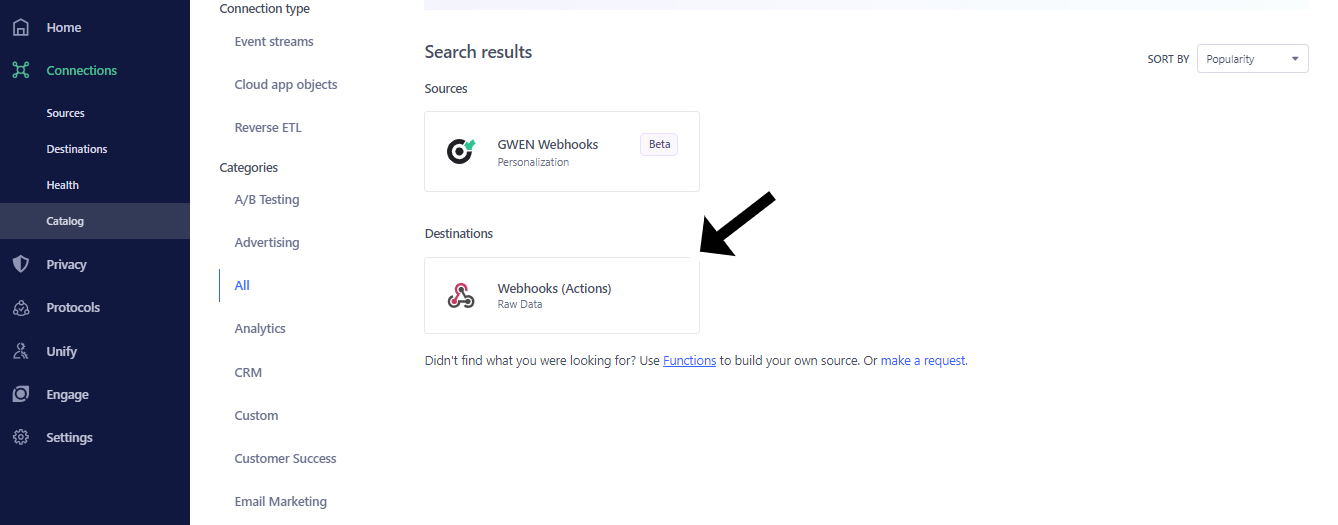
Log in to your Segment account, open workspace, and select source. Click on **Add Destination** and search and select [**Webhooks**](https://segment.com/docs/connections/destinations/catalog/webhooks/).
## Create Mapping
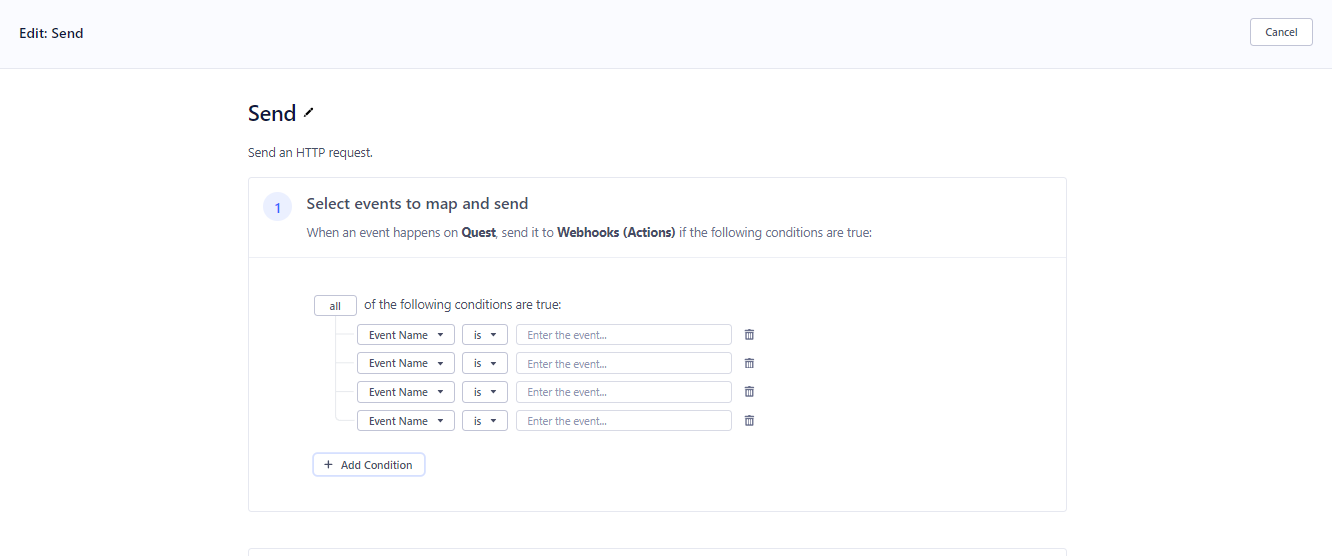
Next after creating the destination, click the **Mappings** tab and add a new mapping
## Set Event types to send to Quest
Select the event types that you want to send to Quest. In this example, we select identify, group, and track, but you can select any event type you want to send to Quest.
## Add Webhook URL
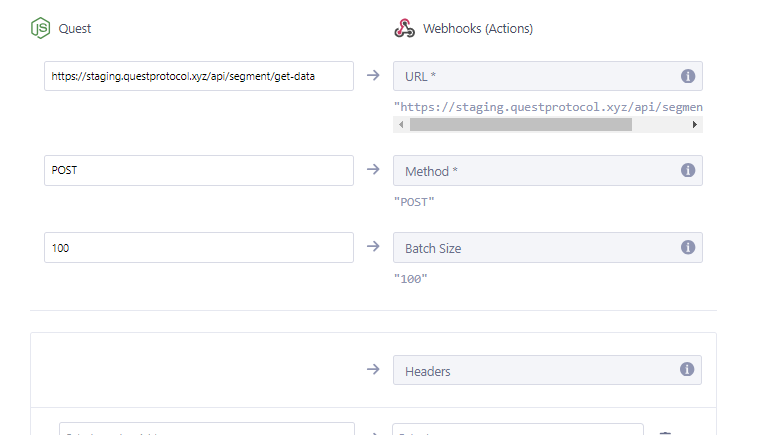
Fill the Select mappings with using:
* `POST` as Method
* `PROD - https://api.questprotocol.xyz/api/segment/get-data` as the URL
* `STAGING -` \
`https://staging.questprotocol.xyz/api/segment/get-data` as the URL
* 100 as **Batch Size**. Note: if you send fewer than 100 events per day, it is recommended to set this to a lower value to avoid delays in sending events to Quest.
* Request format\
`{ userId, event, properties } = req.body`\
`entityId is included in properties`
* `Pass headers - apikey`\
`apikey can be found in` [`Settings`](https://staging.questlabs.ai/admin/settings)
Finally, set **Enable Batching?** to **No**. \
Optionally, you can send a test event to verify that the webhook is working. Click **Save** to save the webhook.
## Save & enable webhooks destination
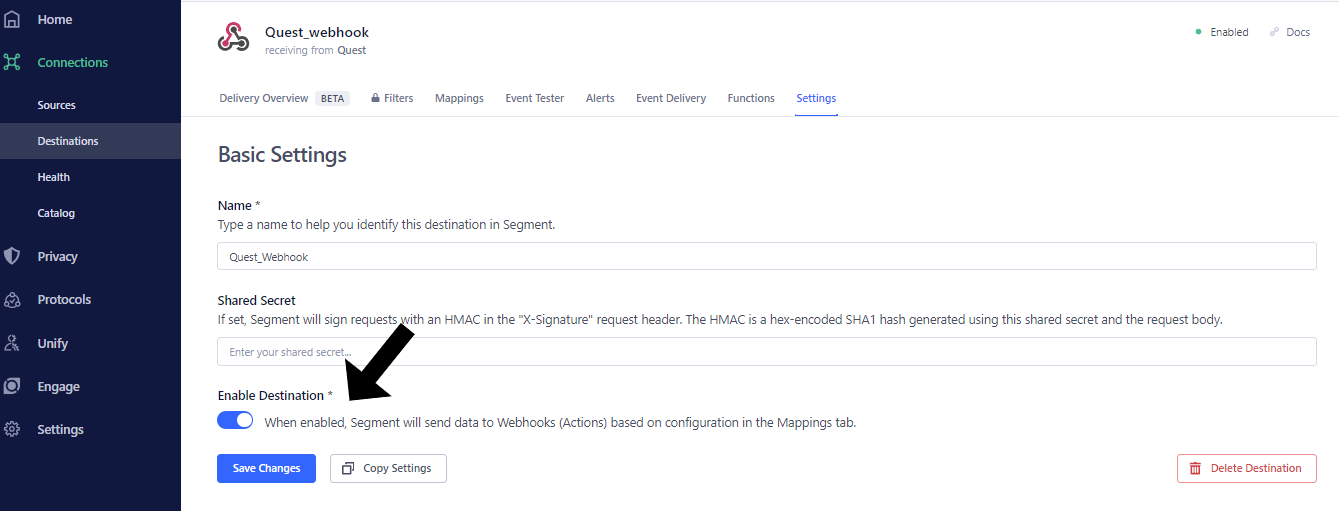
Open the **Settings** tab and enable the Destination & save the changes.
Congratulations! You have successfully set up Quest as a destination for Segment.